
Switch from Photoshop to GIMP: Tips From A Pro

Over six months ago, I stopped using Adobe Photoshop and switched to GIMP for all my personal photography projects. This wasn’t the impossible task that most people believe it is.
Users often claim that Photoshop is absolutely essential to their workflow. Across the internet, forum users are ridiculed for even suggesting that someone try to replace Photoshop with GIMP.
But times have changed. Photoshop isn’t the killer app that it used to be. I spend about 90% of my time in Lightroom and only 10% in Photoshop. This is the same for many other professionals. We’ve all switched to the RAW format, so we use RAW photo editors most of the time. Photoshop is often just used for final touch ups.
Photoshop isn’t the killer app that it used to be. I spend about 90% of my time in Lightroom and only 10% in Photoshop.
For the reduced role that Photoshop now plays in many photographers’ workflows, GIMP is surprisingly capable. However, transitioning to GIMP can be frustrating because the keyboard shortcuts, tools and interface are different from Photoshop’s. The following setup tips can help make Photoshop users feel much more at home in GIMP.
Easily Setup Photoshop Keyboard Shortcuts in GIMP

By simply replacing one configuration file, you can have Photoshop’s keyboard shortcuts enabled in GIMP. This is by far, the most helpful thing I did to make my transition to GIMP easier. In fact, I am almost useless in GIMP without it.
Since GIMP and Photoshop are not exactly the same, there are a few differences. You can view a list of all the keyboard shortcuts here (requires Java).
In Linux
- Download the ps-menurc file from freeshell.org
- In the folder ~/.gimp-2.8, rename the file “menurc” to “menurc-backup”
- Rename the ps-menurc file you downloaded to “menurc” and move it to ~/.gimp-2.8
- Relaunch GIMP for the changes to take effect
In Mac OS X
You can’t view hidden files by default in newer versions of Mac OS X. So you first need to make the ~/Library folder visible.
- In terminal run:
chflags nohidden ~/Libraryto make the Library folder visible - Hold down ALT and right-click on the Finder icon in the dock, choose relaunch
- Go to ~/Library/Application Support/GIMP/2.8/ and rename the file “menurc” to “menurc-backup”
- Rename the ps-menurc file you downloaded to “menurc” and move it to ~/Library/Application Support/GIMP/2.8/
- Relaunch GIMP for the changes to take effect
*After installing the configuration file, I also recommend binding “[” to Decrease Brush Size More, and “]” to Increase Brush Size More to speed up brush size changes.
Install a ‘Layer From Current Selection’ Replacement

In Photoshop, CTRL+J can be used for more than just duplicating the current layer, it can make a new layer from the current selection. This is a really handy tool that I use very often in Photoshop. You can add the same function to GIMP’s Layer menu with a plugin called Layer via Copy/Cut.
- Install the plugin Layer via Copy/Cut plugin: http://registry.gimp.org/node/26396
- With your current layer active, make a selection
- In the main menu choose: Layer => Layer via Copy
- Your selection will be copied to a new layer
*Combining the ‘Layer via Copy’ feature with layer masks is a great way to create composite images in GIMP. The two can also be a capable (but less efficient) replacement to the patch tool in Photoshop.
Make ‘Snap to Canvas Edge’ the Default
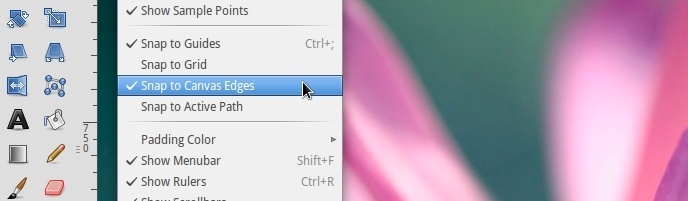
Something I find really frustrating in GIMP, is that by default, layers don’t snap the edge of the canvas (or the grid) when I move them. It gets worse because you have to enable it every single time you open an image. Fortunately, since open source software is so customizable, this can easily be changed.
- Open ~/.gimp-2.8/gimprc with a text editor
- At the bottom, add the two lines:
(default-snap-to-canvas yes)
(default-snap-to-grid yes)
- Save and close
Disable ‘Show Layer Boundary’ by Default

Someting I never got used to in GIMP is the yellow and black dotted line that surrounds the active layer. Though it can be helpful at times, I definitely prefer to have it disabled by default.
- From the main menu go to Edit => Preferences => Image Windows => Appearance
- Uncheck Show Layer Boundary under both Normal Mode and Fullscreen Mode
- Restart GIMP to for the changes to take effect
You can always temporarily turn it back on by clicking on View in the main menu and choosing Show Layer Boundary.
Make the Move Tool Function Like Photoshop’s
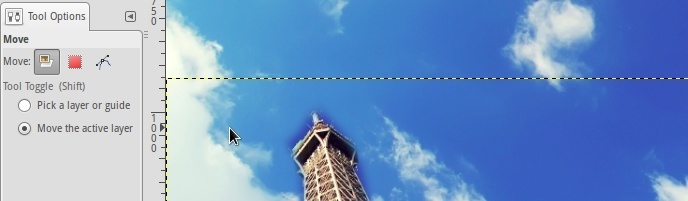
By default, the Move Tool in GIMP is set to Pick a Layer or Guide. With this option set, it is a bit more like Inkscape or Illustrator because you also move things that are not on the current layer (like the background). If you are a long time Photoshop user, this is very strange.
To make it function like Photoshop, you want to set the default to Move the Active Layer.
- Select the Move Tool for the Tool Box in the left panel
- In the Tool Options dialogue box check Move the Active Layer
- From the main menu go Edit => Preferences => Tool Options => Save Tool Options Now
- Restart GIMP
Install a ‘Content Aware Fill’ Replacement
The useful “Content Aware Fill” feature that showed up in Photoshop CS5 (or was it CS4?) actually originated as a GIMP plugin called “Resynthesizer”. It allows you to make a selection around something you don’t want in an image, push a key, and puff! it’s gone.
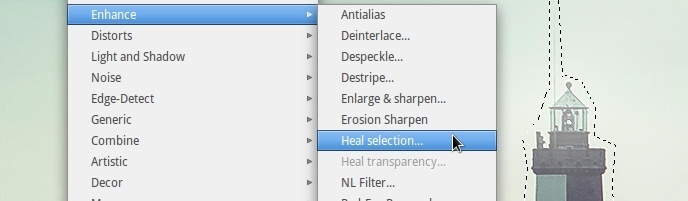
The Heal Selection plugin (aka smart remove) is a great replacement for Content Aware Fill. The easiest way to install it, and many other helpful plugins, in Linux is to install the full GIMP Plugin Registry. This can be done via Thorsten Stettin‘s PPA. In Terminal run:
sudo add-apt-repository ppa:otto-kesselgulasch/gimp
sudo apt-get update
sudo apt-get install gimp-plugin-registry
If you don’t want to install the full plugin registry, you can just install the two required plugins:
Resynthesizer: http://registry.gimp.org/node/27986
Heal Selection: http://registry.gimp.org/node/15118
Once installed, make a selection, then go to Filters => Enhance => Heal Selection.
Install ICC Color Profiles

If you are running Ubuntu, or any of its derivatives like Linux Mint or elementary OS, you can download high quality, freely availible ICC color profiles (like sRGB) directly from the repositories. Just search for “icc color profiles” in your package manager. They will be copied to /usr/share/color/icc/
If you are not running one of the *buntus, you can get sRGB ICC profiles directly from the International Color Consortium.
For the photographers shooting in the Abode RGB color space (which has a wider color gamut than sRGB), you can download the color profiles from Adobe’s website. This package also includes CMYK color profiles. You will be required to agree to Adobe’s EULA. I recommend copying the files to /usr/share/color/icc/.
Once you have the color profiles on your disk, you need to let GIMP know where they are. From the main menu in GIMP, go to Edit => Preferences => Color Management. Make sure Mode of Operation is set to Color Managed Display, and select your RGB and CMYK ICC files in the drop down menus below.
Of course, your monitor has already been color calibrated right?… Nobody would be silly enough to try and color balance a photo without first calibrating their monitor…. right?
Install the CMYK Conversion Plugin

…or even better, just use the free, open-source digital painting program Krtia to convert your images from RGB to CMYK. Open the photo in Krita and from the main menu go to:
- Image => Convert Image Type
- Choose CMYK, 8bit (or 16bit!) depth and your color profile
- Then, File => Export and choose TIFF
But… if you want to do it all in GIMP, you can convert an image from the RGB color space to CMYK with the Separate+ plugin. However, there are a couple of limitations. The Arch Linux wiki has a great write-up about the limitations (as well as how to soft-proof an image). Some of the things Separate+ can do:
- Separate a RGB image
- Attach ICC profiles to separated image files
- Convert from one RGB profile to another
- Soft-proof colors
If you installed the “gimp-plugin-registry” package from the PPA I mentioned previously, you already have it. If you didn’t, you can also install it from the GIMP Plugin Registry website.
To convert your image to CMYK in GIMP:
- From the main menu, go to Image => Separate => Separate
- This will give you a new image that looks inverted and has four separate layers
- Go to Image => Separate => Export to export your image to a .tiff file
*In my work as a professional photographer, it is actually the graphic designers and printers that I send my photos to who require CMYK support. Whether it’s for a magazine, a newspaper or even a billboard ad, I’ve never had someone request a photo in the CMYK color space. In fact, they always request that the photos are in the RGB color space, then they do the conversion themselves.
Customize Your Workspace
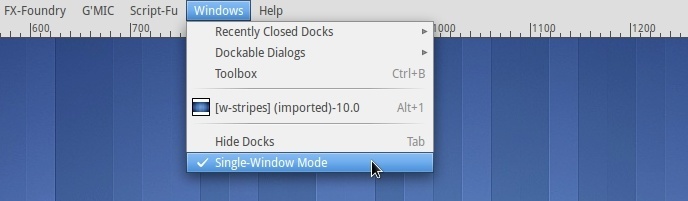
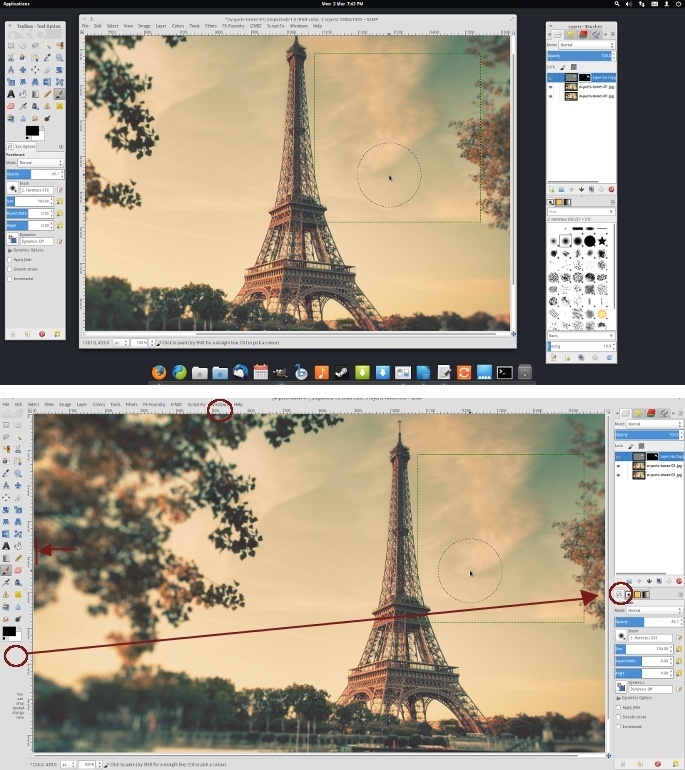
Enable Single-Window Mode
This seems like an obvious step, but I’ve met several GIMP users who didn’t even know it was an option. Photoshop users will feel much more at home when they have their tools, menus, panels and workspace together in one window.
From the main menu, simply go to Windows => Single-Window Mode
Dockable Dialogues
To free up a lot of space on the left side panel, move the Tool Options dock to the bottom right panel. Then resize your left panel to something much thinner.
If you want GIMP to really mimic Photoshop, you can move the Layers dialogue to the bottom right panel. Personally, I’ve grown to like my Layers at the top and the Tool Options at the bottom.


26 Comments
rileybphoto
March 14, 2014Thanks for the link. I have’t tried that plugin yet.
Grzesiek
March 15, 2014Here’s an example of workflow with it: http://blog.patdavid.net/2011/12/getting-around-in-gimp-skin-retouching.html
rileybphoto
March 13, 2014This should be it: http://doctormo.deviantart.com/art/Gimp-2-8-Photoshop-Tweaks-432736644
rileybphoto
March 13, 2014Thanks for the links. I’ll have to check it out.
The second link doesn’t work for me. Are you able to post the correct one?
Hermann Herz
March 13, 2014Thanks for approving the comment ;)! I edited the link above, disqus added that “)” to the end of the link which isn’t correct…
rileybphoto
March 13, 2014The link is here: http://www.webupd8.org/2014/02/gimp-get-photoshop-like-keyboard.html
ispoof
March 12, 2014I think the only major thing GIMP is lacking to replace Photoshop on thousands of desks is the lack of support for grouped layers (folders) and layer masks. As a web developer, I often get to work on web designs made with Photoshop and heavily using those features. I have to keep an XP copy on VirtualBox just for the sake of Photoshop’s ability to render PSDs with grouped layers the right way. Hope this feature is being already cooked among the GIMP devs.
Grzesiek
March 15, 2014Initial support for grouping layers is already there (GIMP 2.8), but for now you can’t do much with those groups. This is going to be improved in GIMP 2.10.
Ikem Krueger
March 12, 2014Someone need to pack that up and make it a script.
Xoco
March 12, 2014Adobe Induced 4ever…
AlbertoAru
March 11, 2014I’m translating it into spanish, this is an excellent tutorial, thank you :)
Btw, when you say “You can always temporarily turn it back
on by clicking on Edit in the main menu and choosing Show Layer
Boundary.”, it’s wrong, it’s View, not Edit :)
rileybphoto
March 11, 2014Thanks for the correction. It’s been updated.
AlbertoAru
March 13, 2014Thanks to you for the tutorial :)
Cristian Escudero
March 11, 2014Thank you :), it was really useful.
rileybphoto
March 11, 2014No problem ;)
Grzesiek
March 11, 2014Useful for portrait retouching, but also other stuff: http://registry.gimp.org/node/11742 .
BTW:
“But GIMP doesn’t have all those features!”
“Because you bought Photoshop instead of donating that money to GIMP.”
Hermann Herz
March 11, 2014Have a look at http://www.reboot2elementary.com/gimp2photoshop (or direct http://doctormo.deviantart.com/art/Gimp-2-8-Photoshop-Tweaks-432736644 ). Shortcuts, gray background, PS icons, … in one zip file.
udi
March 11, 2014Is that ElementaryOS what I see there? big UP!
also on topic: How about Lightroom alternatives? Any recommendations there?
Ramiro Algozino
March 11, 2014DarkTable and LightZone are the main alternatives…
rileybphoto
March 11, 2014Yes, it’s elementary OS :) I recommend darktable (open-source) or Corel Aftershot Pro (closed-source) for Lightroom alternatives.
Shnatsel
March 12, 2014Yup, elementary OS there with its default wallpapers as some of the example images.
Source: I’m one of the developers of elementary OS.
udi
March 12, 2014Hi, and I’m one of the users of eOS. Nice to meet you ;)
Shnatsel
March 12, 2014Likewise! :D
Gyurbán Fektor Von Schiff
March 19, 2014Hah i like elementary. My second fav os.
127wexfordroad
March 31, 2014Then I’d like to officially thank you and all other elementary OS devs. It has literally saved Ubuntu for me!
Shnatsel
March 31, 2014You’re officially welcome! ;)